

Have you ever wished you could change or customize your Jira instance, without having to take advanced courses, beg your admin, or add a million apps?

Okay, everyone, put your hands down. Of course, we all want that.
Although I’m usually The Trello Girl™, I’m jumping over to The Jira Guy today because I wrote a post about lightweight ways to customize Trello on the Trello blog (now Atlassian Work Life blog) and so many people loved it that I thought our Jira friends might appreciate a version for them, too.
Full disclosure: I work at PixieBrix as Head of Developer Relations, and I’m going to be talking about PixieBrix a lot in this post. Why? Well, I started using PixieBrix a few years ago to build customizations for Trello. And now, I get to work for them full time making customizations and showing others how to do the same.
PixieBrix is a Chrome extension that lets you add features and customize web apps. You can add buttons or triggers to any webpage that you can access in your browser, and tie those triggers to different activities, like showing confetti, interacting with AI, fetching or sending information to other tools, and more. You can even create your own mini applications in Sidebars that interact with content on the page. All of these enhancements that are packaged up nicely are called Mods, and I’m going to show you a few of my favorites.
So why do Jira users care? Because you can use PixieBrix to create customizations directly in Chrome, no need to go through your admin, add a thousand apps. Just one Chrome Extension will let you do all you need, and depending on the mod, you won’t even need to integrate directly with Jira. You can build customizations that only apply to yourself on your browser, or you can deploy them to your entire team, making it perfect to customize the experience for whoever wants it.
Here are a couple of my favorite customizations (we call them “Mods”) that you can start using right away.
Jira Sidebar
Ever want to see your Jira issues without opening a tab and going to Jira? PixieBrix has a Jira sidebar, perfect for displaying your Jira issues from any tab in Chrome. You can even click directly on an issue to go to that issue.

You might want to use this if:
- You find yourself navigating to Jira every few minutes to look at what’s on your plate
- You get lost when you jump into Jira and find everything except the issue you’re looking for
- You want to flex and show off how many issues you have closed in daily standup
To try it out, activate the Jira Sidebar from PixieBrix. You’ll be prompted to create a free PixieBrix account and install the Chrome Extension. You’ll also need to connect PixieBrix with Jira. (If you need any help with that, just reach out to yours truly, and I’ll get you all set up.)
Create a Jira issue from anywhere
What’s the Jira slogan? I think it’s
“It doesn’t exist if there’s not an issue.”
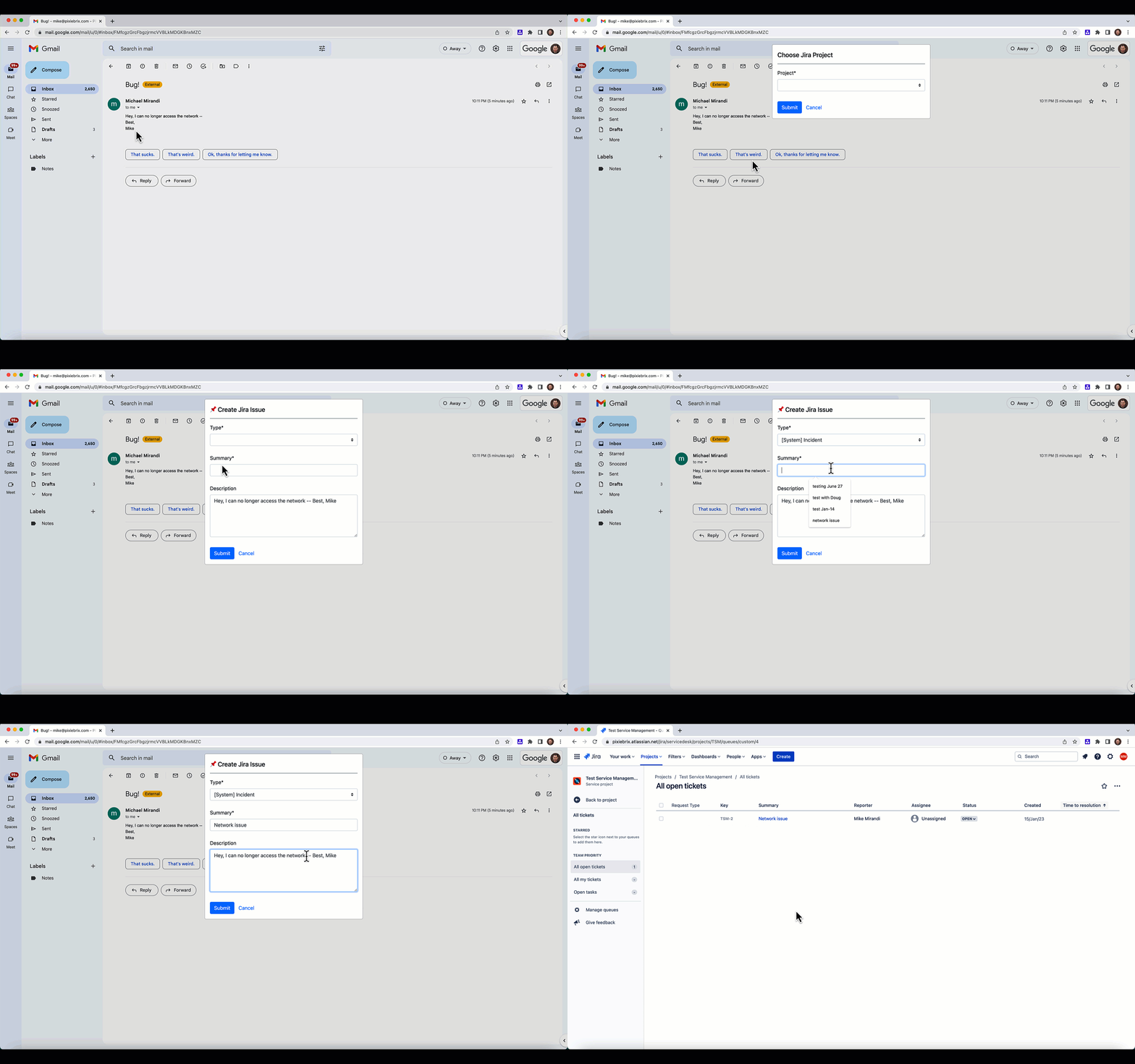
But how much time do we spend opening a new tab to go to Jira to create an issue and then get totally lost in everything there? There’s a PixieBrix mod that can help you out with this by creating a Jira issue from selected text on any page.
Let’s say you’ve got an email from someone… and it should’ve been a ticket 🙄
This PixieBrix customization lets you select the copy from the email and create a Jira issue without ever leaving your inbox.
You might want to use this if:
- People often send you emails (or slacks) instead of creating tickets
- You spend more of your day creating tickets than handling them
- You want to have a perfect record of capturing every task in Jira
To try it out, activate the Create Jira Issue from Anywhere mod. If you’ve already created a PixieBrix account and added the extension, you’ll go straight to activating and connecting your Jira integration. Otherwise, you’ll take those steps and then connect. If you need any help at all, just reach out to me (not only am I the Trello Girl, I’m also PixieBritt, at your service).
The next three customizations can be yours just by creating a free PixieBrix account, and they can actually be used across the web, not just in Jira. But I want to show you specifically how I use these mods in Jira.
The best part— you don’t have to activate each one of these one by one… just by creating a free PixieBrix account, you’ll have access to all of them.
- Create a free PixieBrix account (if you haven’t already)
- Install the PixieBrix Chrome extension
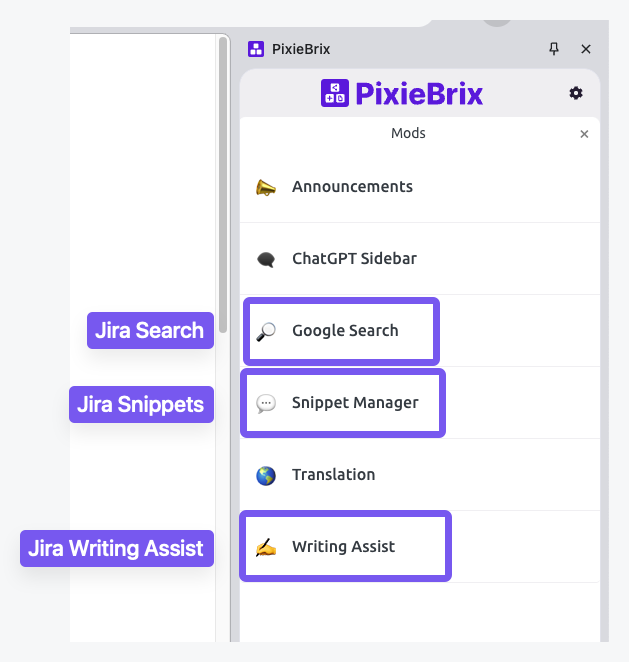
- Open the PixieBrix sidebar (click the extension icon in your Chrome Bar and click the PixieBrix icon)
- 🎉 Voila, you’ll have a list of mods! I’ve highlighted the ones I’m going to show you.
Have you signed up yet? Go ahead, I’ll wait.
Okay, let’s dive in!
Jira Snippets
Do you type the same text often? Or have templates for your descriptions? Rather than having multiple tools or building automation to handle this, you can use the PixieBrix Snippet Manager to create customized snippets of text that can be injected into Jira (comments, descriptions… anywhere you place text!)

To access the snippets, you’ll just simply type \ to open the menu of snippets, or you can select one from the PixieBrix sidebar if you have it open. Just select the Snippets action from the list of mods in the Sidebar, or click the + button next to the open Sidebar tab.
You might find this Snippet mod useful if:
- You constantly have to remind people to write better bug reports
- You have a standard follow-up message when you’ve received an issue
- Your fingers are tired from all the typing you have to do in Jira
Jira Writing Assist
Yeah, yeah, there are a million AI writers, and even Atlassian Intelligence can help you with writing inside your Jira issues. But, unfortunately, not all of us are blessed with a subscription plan that has Atlassian Intelligence, so here’s a customization that can help you out in the meantime.
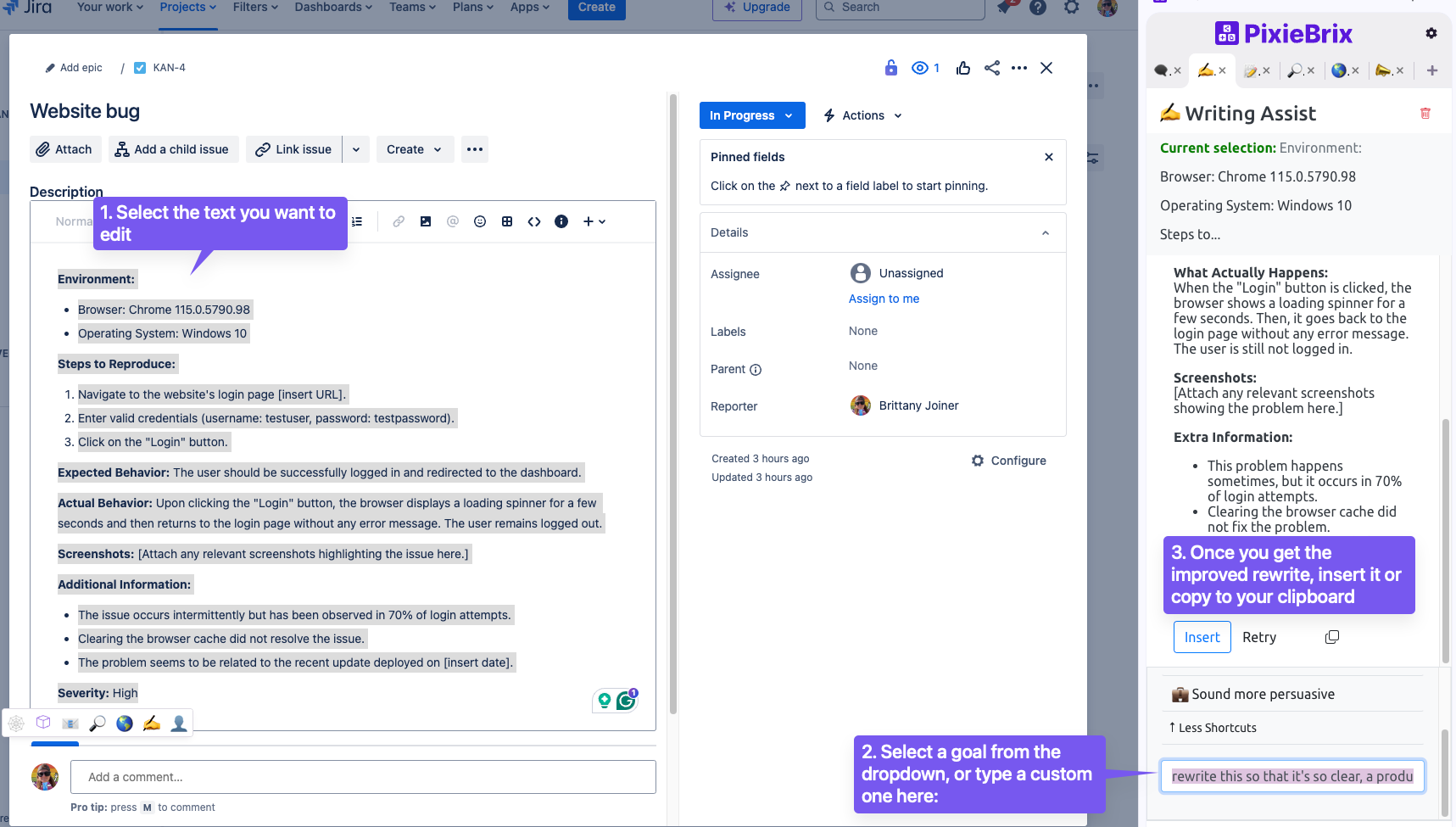
PixieBrix has a Writing Assist mod that lets you take selected text, and rewrite it to be whatever you need it to be.
You can choose from specific actions like “make it shorter” or “make it sound more persuasive”, or you can give a custom goal like “make this so clear a 5th grader could understand this”.
You might find this useful if:
- Ted from marketing doesn’t ever understand how what you’re doing is going to help his goals
- You’ve been told you need to sound a little friendlier in your responses to tickets
- Nobody reads your issues because they’re too long, but you don’t know how to shorten them
Okay, I’ve got one more for you, and this one might be my favorite. It’s a new one, and I’m finding all sorts of uses for it – specifically with the Atlassian Community! (Which, by the way, if you’re not part of, you definitely should be. You’ll find all sorts of folks like me and Rodney and probably ever other contributor on this blog over there!)
Jira Search Sidebar
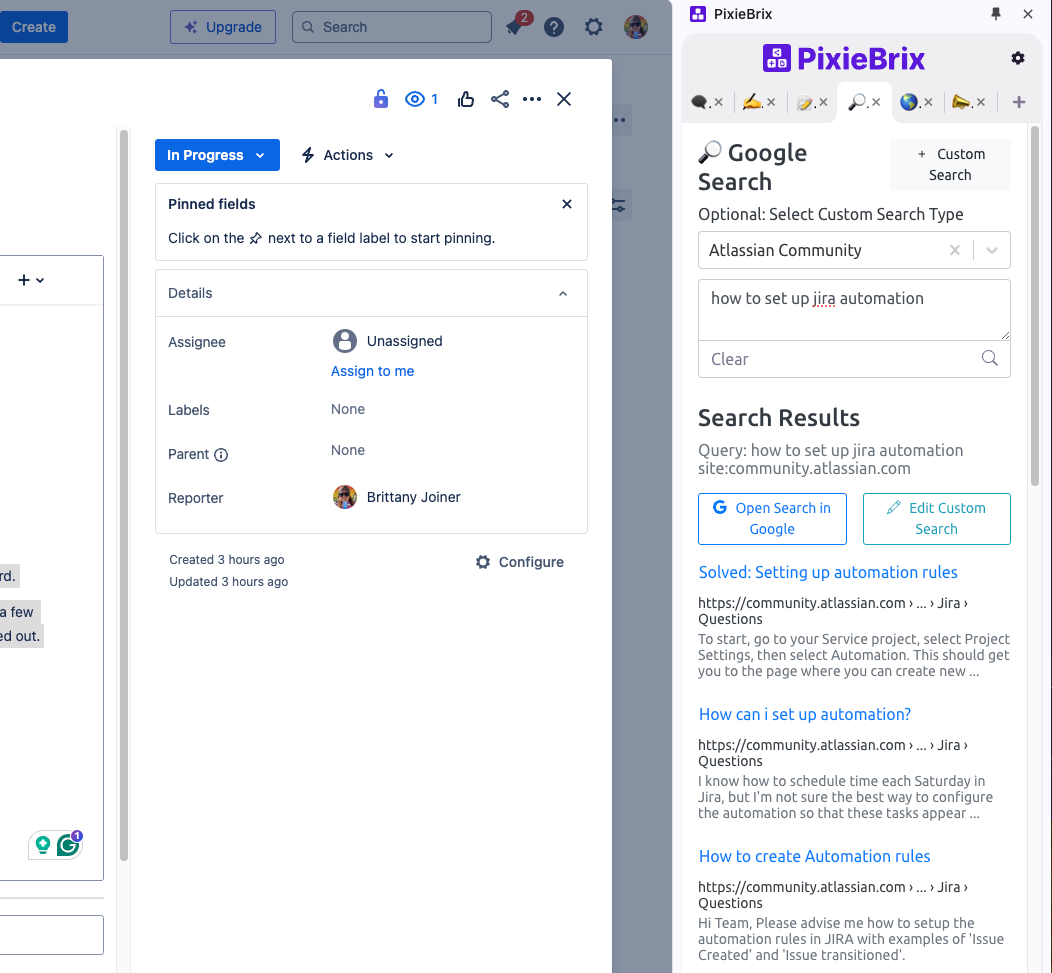
Jira has a lot of perks, but isn’t always the easiest to use tool. (Hey, neither is Trello sometimes!) Without having to open another tab and start a new side quest to find answers to your questions, the PixieBrix Search Sidebar lets you search Google or set up custom searches (like site:community.atlassian.com or site:support.atlassian.com/jira-software-cloud/resources) and you can run those searches in a sidebar while you’re in Jira. No need to open a new tab.
You might find this useful if:
- You have a lot of questions about Jira (who doesn’t?)
- You get distracted when opening a new tab to search for a question
- You don’t trust just anybody to answer your Jira questions (only community, support docs, and TheJiraGuy.com)
Happy customizing!
We’ve covered a lot of ground in this post, but this is just the beginning. I’ve shown you a couple out-of-the-box customizations that you can activate and use, but the world is your oyster when it comes to building with PixieBrix.
Let’s say you want to hide specific fields in Jira, or maybe you want to click a button on a Jira issue to create a new GitHub issue (or vice versa). You can build this functionality by creating your own PixieBrix mod. There’s lots to learn, which is why we’ve created tutorials to help you get started with building mods and customizations on webpages via PixieBrix. And you’ve also got a friend to lean on here… me! 🙋 My DMs are open if you need any help at all.

 The Jira Guy